Mapsake guide
How to Use Mapsake with ChatGPT, Claude, or Your Own AI
Ask your travel history questions where you already chat. This step-by-step guide explains the one-time connection, privacy choices, safe edits, imports, exports, and troubleshooting without technical language.
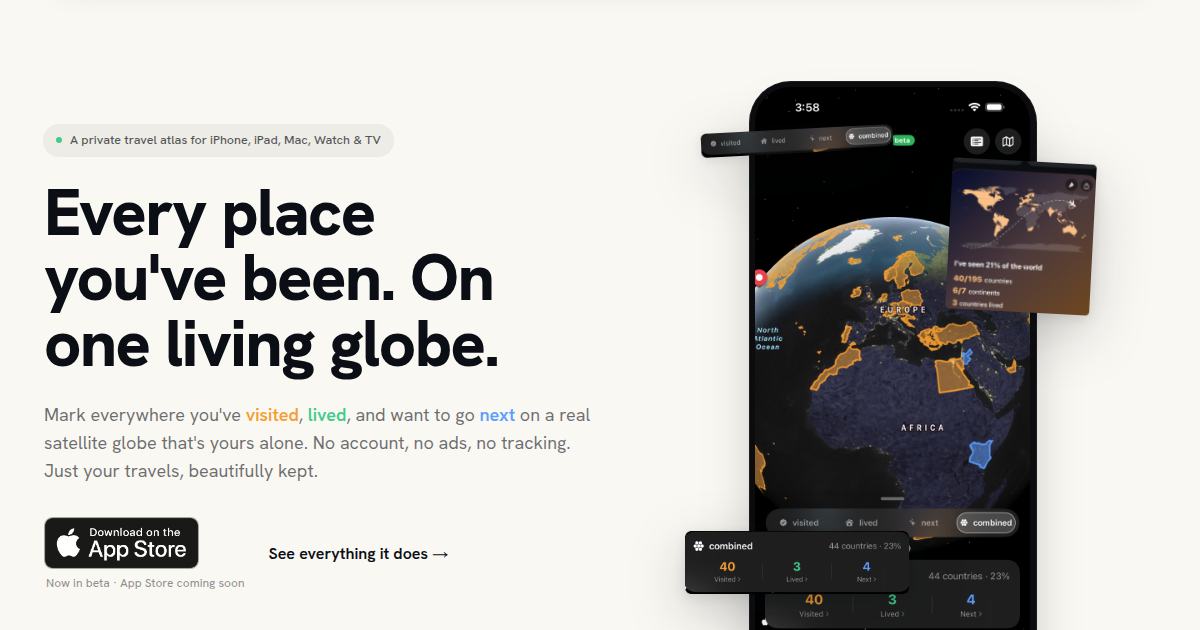
Mapsake can now answer travel questions inside ChatGPT, Claude, or a compatible AI you host yourself. You can ask where you were during a particular month, how many photos you took in a region, which countries are on your Next list, or ask the assistant to prepare a carefully confirmed change to your map.
This guide assumes you already know how to chat with your chosen assistant. You do not need to know what a server, protocol, or API is for ChatGPT or Claude. The connection takes a few minutes, and you can turn it off from Mapsake at any time. A later section explains the one extra compatibility check for a self-hosted assistant.
Before you connect
Install the latest version of Mapsake and make sure iCloud is available on your iPhone or iPad. You also need a version of ChatGPT or Claude that lets you add a custom connector. The names and locations of connector buttons can change as those apps are updated, but the Mapsake steps stay the same.
Remote AI Access is optional and off by default. Turning it on does not give every assistant access. You still choose the information and actions Mapsake may share, and you pair each assistant with a one-time code.
Choose what your assistant may use
In Mapsake, open Profile, choose Settings, and then choose Remote AI Access. Turn on Remote AI Access and read the confirmation before allowing it.
The page has separate choices for the information your assistant can see:
- Include notes lets it answer questions using notes saved with your places.
- Include photo counts and dates lets it count and compare your travel photos without sharing the original photos.
- Include passport stamps shares safe stamp details, not a passport scan, passport image, or passport chip data.
There are also separate choices for actions:
- Allow marking and editing places lets the assistant prepare changes such as marking a country Visited or adding a Next destination.
- Allow attachment imports lets Mapsake inspect a supported travel-history file you attach to a conversation.
- Allow data exports lets the assistant prepare an export. Your Mapsake export PIN still applies if you use one.
Start with only the choices you expect to use. You can return to this page and change them later.
Connect Mapsake to ChatGPT
Keep the Remote AI Access page open in Mapsake and follow these steps:
- Tap Create one-time pairing code. Mapsake shows a short code and when it expires.
- Copy the Mapsake server address: https://mcp.mapsake.app/mcp.
- In ChatGPT, open its settings for apps or connectors and choose the option to add a custom connector.
- Paste the Mapsake server address when ChatGPT asks for the connector address.
- ChatGPT opens a Mapsake authorization page. Enter the one-time code from your iPhone or iPad.
- Approve the connection and return to ChatGPT. Mapsake should appear as a connected app or connector.
The code works once. If it expires or you leave the setup flow, create a fresh code and try again. You never enter your Apple ID, iCloud password, Mapsake app-lock PIN, or passport number on the authorization page.
Connect Mapsake to Claude
The Mapsake steps are the same for Claude:
- Create a fresh one-time pairing code in Mapsake.
- Open Claude's settings for integrations or connectors and choose its custom connector option.
- Enter https://mcp.mapsake.app/mcp as the connector address.
- When the Mapsake authorization page opens, enter the one-time code.
- Approve the connection and return to Claude.
If your version of Claude does not show a custom connector option, that client or account may not support remote connectors yet. Do not paste the one-time code into an ordinary chat message. Save it for the Mapsake authorization page.
Connect a self-hosted AI
You are not limited to ChatGPT or Claude. A self-hosted assistant can connect when its chat interface supports remote MCP connectors with OAuth. MCP may appear in its settings as Model Context Protocol, tools, integrations, or custom connectors.
The Mapsake steps do not change:
- Open Profile > Settings > Remote AI Access in Mapsake and create a fresh one-time pairing code.
- In your self-hosted assistant, add a remote MCP server or custom connector.
- Use https://mcp.mapsake.app/mcp as the server address.
- Let the assistant open Mapsake's secure authorization page in a browser.
- Enter the one-time code on that page, approve the connection, and return to your assistant.
The assistant must support the browser-based OAuth connection. A setting that accepts only a local command, local file, or standard input is not enough by itself. If your interface asks for an OAuth client ID or secret, try its automatic or dynamic client-registration option; Mapsake does not require you to create a separate developer account or copy a permanent Mapsake password.
Self-hosting the assistant does not make Mapsake's relay local. The encrypted Mapsake connection still uses mcp.mapsake.app and your iCloud relay, while your chosen model and chat interface remain under your control. Apply the same privacy judgment you would use for any assistant: it receives the questions you ask and the Mapsake answers needed for that conversation.
Try a simple travel question
Begin with a read-only question. These are good examples to copy into a new chat:
- "Where was I in September 2022?"
- "Which countries are in my Next list?"
- "How many photos did I take in Africa?"
- "Show my trips to Germany in date order."
- "Which cities have I marked as Lived?"
- "Summarize the countries I visited last year."
The assistant may ask permission to use Mapsake before it answers. Approve the Mapsake tool for that conversation. Answers can only use categories you enabled in Remote AI Access.
For the clearest answer, include a date range, place type, or travel status when it matters. For example, "Show places marked Visited in Italy during 2024" is clearer than "Tell me about Italy."
Make a safe change through chat
If Allow marking and editing places is on, you can ask for changes such as:
- "Mark Sudan as Visited in Mapsake."
- "Add Japan to my Next countries."
- "Change Berlin from Visited to Lived."
Mapsake does not treat the first sentence as permission to edit your atlas. The assistant prepares the exact action and asks you to confirm it. Removals require an exact place and a fresh confirmation. This extra step is intentional because manually entered travel history may have no photo library to rebuild it from.
A confirmed action may briefly say that it is queued. iOS can wake Mapsake in the background, but it decides when that happens. If a change remains queued, open Mapsake and tap Refresh and check for requests on the Remote AI Access page. You can then ask the assistant to check the operation again.
Import a travel-history file from a conversation
If Allow attachment imports is on, attach a supported export from another travel app to your assistant and say what it is. For example: "Import this Flighty history into Mapsake."
The assistant sends the attachment through the encrypted connection. Mapsake parses it using the same import rules as the app and returns a preview. Review the places and counts before confirming. A failed, incomplete, or cancelled import does not replace your existing atlas, and retrying the same import is designed not to create duplicate records.
If the assistant cannot identify the file, name the app that created it and leave the original filename and format unchanged. Very large files can take longer and may finish after Mapsake next receives background time or is opened.
Export without weakening your protection
If Allow data exports is on, ask the assistant to prepare the Mapsake export you need. Mapsake continues to apply your export-protection setting. If you require a PIN for exports, remote access does not bypass it.
Only enable exports while you need them if your travel history is especially sensitive. Turn the option off again afterward without disconnecting read-only questions.
What is shared and what stays private
Your Mapsake app remains the source of truth. Enabling Remote AI Access creates an encrypted copy of only the categories you selected in your own iCloud public database. Mapsake's relay decrypts selected information only while answering an authenticated request. It does not create a second, permanent plain-text database of your travel history.
Original photos, passport images, passport chip scans, app-lock PINs, Apple ID credentials, and iCloud passwords are never included. The assistant provider still receives the question and the answer needed for your conversation, so ChatGPT's or Claude's own privacy terms also apply.
Changing a permission refreshes what the connection may use. Turning off Remote AI Access stops processing requests. Disconnect all assistants also changes the encryption key and invalidates existing access tokens immediately.
If the connection does not finish
Most setup problems are fixed by starting once more with a new code:
- Confirm Remote AI Access is still enabled in Mapsake.
- Create a fresh one-time pairing code.
- Remove the incomplete Mapsake connector from your assistant.
- Add it again with https://mcp.mapsake.app/mcp.
- Enter the code only on the Mapsake authorization page.
If questions work but a confirmed change stays queued, open Mapsake and choose Refresh and check for requests. Also confirm that the matching action permission is still enabled and that the device has an internet connection and working iCloud access.
Do not delete and reinstall Mapsake as a first troubleshooting step. Your travel data is more important than a connector. Disconnecting and reconnecting Remote AI Access is enough for connector problems and does not require rebuilding your atlas.
Disconnect whenever you want
Open Mapsake > Profile > Settings > Remote AI Access. Turn the feature off to stop remote requests, or choose Disconnect all assistants to revoke every current connection. You can create a new connection later with a new one-time code.
The useful part of this feature is simple: your travel map can answer you where you already chat. The careful part is just as important: you decide what is available, edits require confirmation, and Mapsake remains the authoritative copy.